 WP Optimal State ▶ PREVIEW ♛️ FREE/PRO VERSION HERE
💾 Create New Backup
While these backups are stored on your server, we highly recommend downloading critical backups to your local computer for total safety.
Create a full database backup, compressed (GZIP) and verified for integrity.
Oldest backups will be deleted automatically.
📁 Existing Backups
| Backup Name | Date | Size | Integrity | Actions |
|---|
Restore Database from File
📤 Restore your database by uploading a backup file (.sql or .sql.gz).
⚠️ Caution: Restoring a database will replace your current site content. This action cannot be undone.
💖 Database Health Status
Your Health Score is calculated based on Table Overhead (wasted space), Autoloaded Data (site speed), and Clutter (spam/trash).
💡 Tip: A score above 85/100 is considered healthy for most production sites.
Quick Analysis
Optimization Advice
- Waiting for analysis...
🎯 Targeted Optimizations
🔌 Legacy Plugin Data Scanner
🕵️ Detect Ghost Data: Finds data left behind by plugins you have deleted.
📉 Reduce Bloat: Removing orphaned options, meta data, custom tables, and leftover folders can significantly reduce database size and disk usage.
🗄️ Scans: Database options, post meta, custom tables, and filesystem directories (wp-content/uploads, plugins, themes).
📊 Database Statistics
Performance Metrics (PageSpeed)
Measure how fast your pages load for real users. Google uses these Core Web Vitals as a key ranking factor for SEO.
Running an audit here sends a request to Google's servers to analyze your site remotely.
- ● LCP (Loading Speed): If high, go to the Performance tab and enable Server-Side Caching.
- ● CLS (Visual Stability): If high, enable Lazy Load Images to prevent layout shifts.
- ● TBT (Responsiveness): If high, try enabling Heartbeat Control to reduce server load.
(FCP) First Contentful Paint
(LCP) Largest Contentful Paint
(CLS) Cumulative Layout Shift
(TBT) Total Blocking Time
(SI) Speed Index
(TTI) Time to Interactive
🧹 Detailed Database Cleanup
Safe Cleaning
Items like Transients, Auto Drafts, and Spam are generally 100% safe to remove. They regenerate automatically or contain no value.
Caution: Always double-check "Trashed Posts" and "Trashed Comments" manually before emptying them here.
✨ Advanced Operations
Database tables develop "gaps" after deleting data. This process compacts them (like defragging a hard drive) to reduce file size and improve query speed.
If your site is showing database connection errors or missing content, a table may be crashed. This tool scans the structure and attempts an automatic repair.
"Autoloaded" data is loaded on every single page visit. Large autoloads are the #1 cause of slow Time To First Byte (TTFB). This tool identifies heavy items to trim.
Database Structure Analysis
💡 Insight: Understand the architecture of your WordPress database better.
✓ Core WordPress tables are explained in detail.
⚠️ Third-party tables (from plugins/themes) are highlighted.
MySQL Index Manager
Click below to analyze your database schema against WordPress best practices.
Referential Integrity Scanner
Detects "orphaned" data—rows that refer to a parent that no longer exists (e.g., meta data for a deleted post). This data is invisible to WordPress but slows down database operations.
Database Search & Replace
If checked, "Apple" will not match "apple". Recommended for specific code replacements.
If checked, searches for partial text anywhere in strings (e.g., "http://" in URLs). If unchecked, only matches complete words.
Hold Ctrl/Cmd to select multiple. Leave as "All Tables" for a full update.
🗓️ Automation Schedule
If you have low traffic, the backup might run slightly later than the configured time. This is normal.
| Run One-Click Optimization & Backup: | |
| Preferred Time: | Server Time |
| Operation Mode: |
If checked, it will create a backup but NOT perform database cleaning. |
| Max Backups to Keep: | Oldest backups will be deleted automatically. |
| Email Notifications: | Send report to: admin@example.com |
🖋️ Activity Log
🚀 Performance Features
You are currently logged in. OptiState automatically bypasses the cache for administrators so you can edit your site safely. To see the actual performance boost, please test in an Incognito / Private window.
User Access Control
Database operations allow for permanent data deletion. To ensure enterprise-grade safety, limit access to 1 or 2 lead developers. This prevents accidental cleanups by team members who may not have a recent backup.
Enable only selected administrators to use the plugin. If no users are selected, all admins can use the plugin.
⚠️ Warning: Do not lock yourself out! Always include your own account in the list.
💡 Tip: Leave all checkboxes unchecked to allow all administrators.
Login Page Protection
Protect your login page by blocking IPs after repeated failed attempts.
Note: During a lockout, users cannot access the wp-login.php page.
| Enable Protection: | Activate login limiting |
| Max Failed Attempts: |
Number of failed attempts allowed before blocking. |
| Block Duration: |
How long the user is banned from the login page. |
| Cloudflare Compatibility: |
Enable if your site is behind Cloudflare to accurately detect visitor IPs. |
🚫 Recently Blocked Users (Last 15)
| IP Address | Device / Agent | Expires In | Action |
|---|
🛑 IP Number Blocker
Block specific IP addresses from accessing your site entirely.
ℹ️ You can activate this feature alongside Login Page Protection to shield the whole site, not just the login page.
| Enable IP Blocker | |
|---|---|
| Blocked IP Addresses |
Your Current IP (demo):
192.168.1.100
⚠ To avoid locking yourself out of the entire site, ensure this IP is NOT in the list below.
Enter one IP address per line. |
Settings Export & Import
Export: Download all your plugin settings as a JSON file for backup or migration.
Import: Restore settings from a previously exported file. This will overwrite your current configuration.
Export Settings
Creates a backup of all plugin settings including automation schedules, performance toggles, and user access controls.
optistate-settings-YYYY-MM-DD.json Import Settings
Restore settings from a JSON file. Your current settings will be replaced with the imported configuration.
📘 Documentation
Table of Contents
1. Installation & Updates
Installation (First Time Setup)
- Download the plugin.
- Navigate to your WordPress Admin Dashboard.
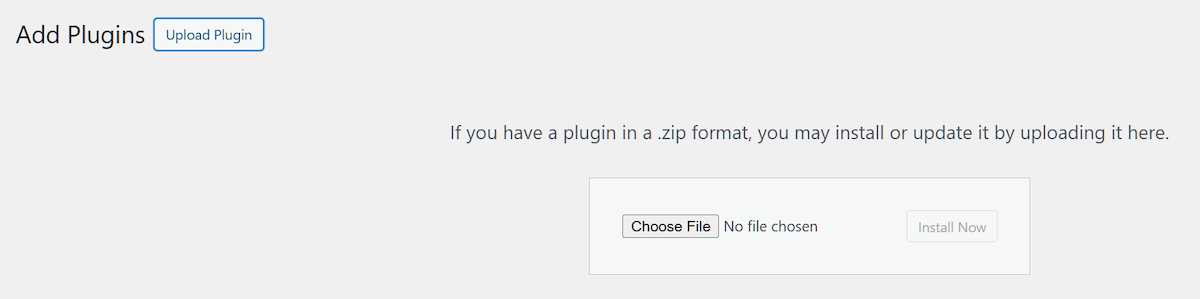
- Go to Plugins > Add New.
- Click Upload Plugin.
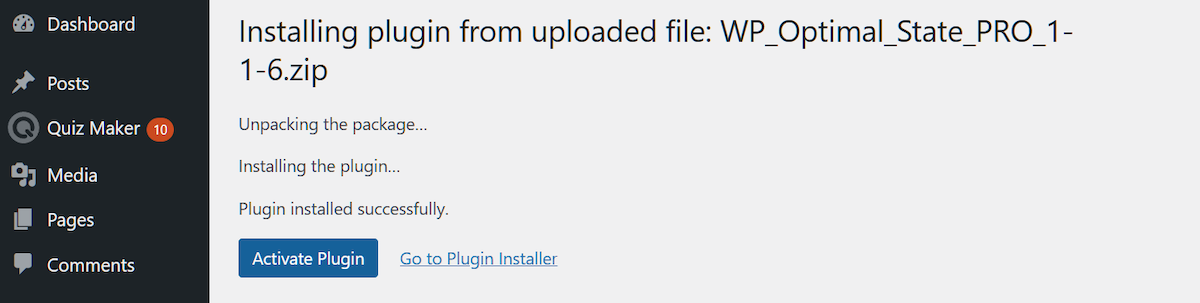
- Choose the
WP_Optimal_State_PRO_X-X-X.zipfile and click Install Now. - Once installed, click Activate Plugin.
- The plugin will automatically create required directories and settings files.
- Look for "Optimal State" in your admin menu.
Upgrading from FREE to PRO Version
- In the plugin interface, go to Section 1 and download your database backups (they download as
.sql.gzfiles). - Go to Section 9 (Settings Export & Import) and click Export Settings to download your
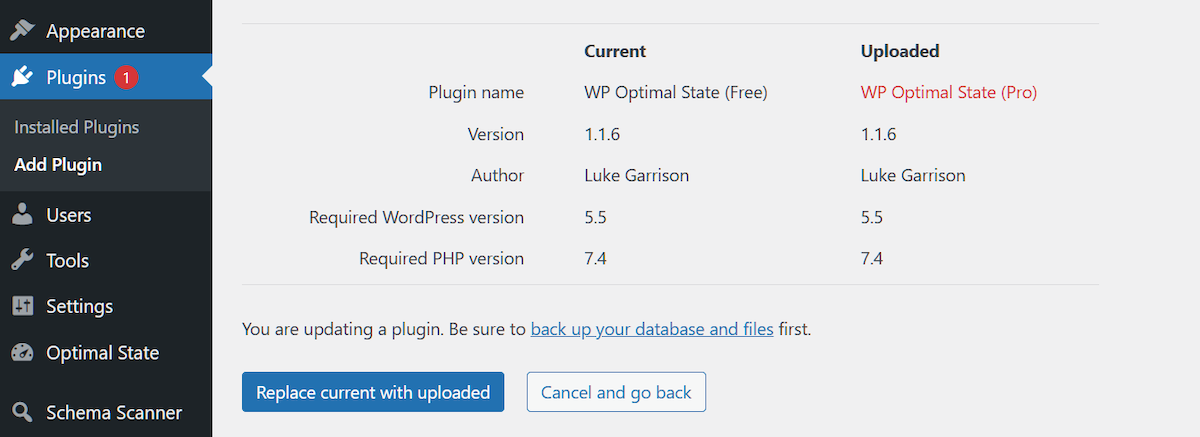
.jsonsettings file. - Go to Plugins > Add Plugin, then Upload Plugin.
- Choose
WP_Optimal_State_PRO_X-X-X.zipand click Install Now. - Click Replace current with uploaded when prompted.
- Visit the plugin admin panel to confirm backups and settings are intact.
- If settings weren't preserved, go to Section 9 and import the
.jsonfile from step 2.
Updating the PRO Version
Option 1: Via Dashboard (Recommended)
- Download your database backups from Section 1.
- Export settings from Section 9 (
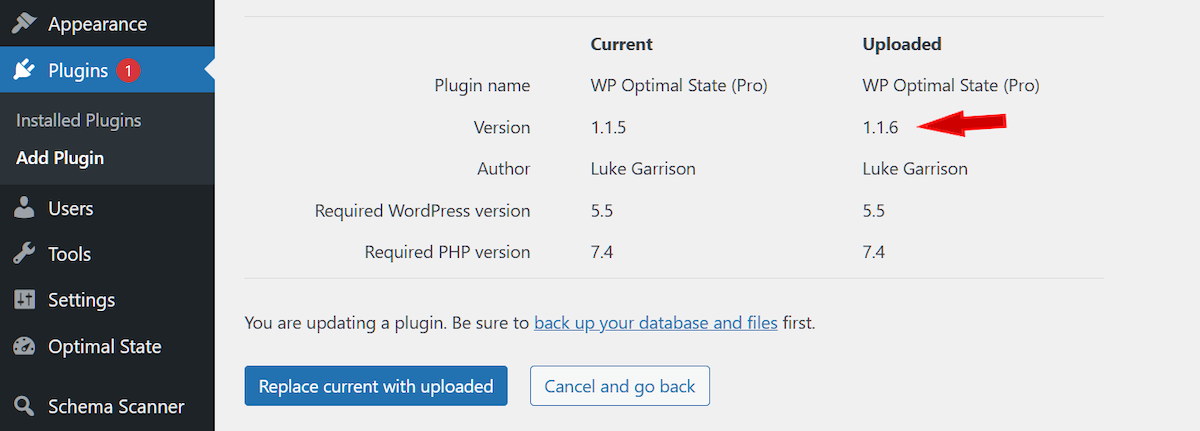
.jsonfile). - Go to Plugins > Add Plugin > Upload Plugin.
- Choose the new version ZIP file and click Install Now.
- Click Replace current with uploaded.
- Verify backups and settings are intact. If not, import the
.jsonfile.
Option 2: Via FTP
- Unzip the new plugin ZIP file on your computer to get the
optistatefolder. - Open your FTP client and navigate to
wp-content/plugins/. - Upload the
optistatefolder, choosing to replace/overwrite existing files. - Go to Plugins > Installed Plugins and verify the new version number.
- Confirm backups and settings are intact in the plugin interface.
2. Core Engine Architecture
WP Optimal State PRO utilizes a custom Asynchronous Process Manager to handle resource-intensive tasks without timing out.
- Process Store: The plugin creates a custom table
{prefix}optistate_processesto persist the state of long-running operations (like backups or restores). This allows tasks to span across multiple PHP requests. - Chunked Execution: Large tasks are broken down into small "chunks." The worker logic (e.g.,
run_manual_backup_chunk_worker) processes a batch of rows or tables, saves the state, and schedules the next chunk via WordPress Cron (wp_schedule_single_event). - Adaptive Resource Usage: The engine dynamically adjusts batch sizes based on PHP
memory_limitand execution time to prevent server crashes.
3. Database Backup Logic
Backups are performed using a high-performance PHP streaming method that ensures compatibility across shared hosting environments where mysqldump or SELECT INTO OUTFILE might be restricted.
Backup Methodology:
- Real-Time Gzip: Data is streamed directly through
gzopen/gzwrite, creating.sql.gzfiles on the fly. This minimizes disk I/O and storage usage. - Metadata Tracking: File details (size, timestamp, database name) are stored in the
{prefix}optistate_backup_metadatatable to verify integrity later. - Retention Policy: The "Max Backups" setting is enforced automatically. When the limit is reached, the oldest files and their metadata are pruned.
- Exclusions: The plugin automatically excludes its own process tables and temporary restore tables (
optistate_old_...) to prevent backup bloat.
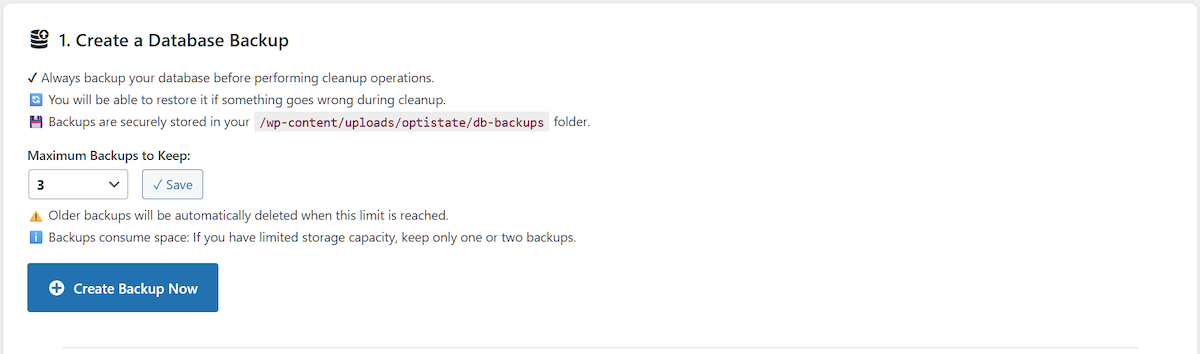
/wp-content/uploads/optistate/db-backups/. This directory is protected from public access via .htaccess and index.php silencers.4. Atomic Restore & Safety Protocol
Restoring a database is a critical operation. WP Optimal State PRO uses a "Verify, Import, Swap" methodology to ensure zero data loss if a failure occurs.
The Restoration Flow:
- Safety Backup: Before any changes are made, a "SAFETY-RESTORE" backup of the live site is automatically created.
- Shadow Import: The backup file is imported into temporary tables (prefixed with
optistate_temp_). The live site remains fully functional during this phase. - Validation: The engine verifies that critical tables (
_posts,_users,_options) exist and contain data in the temporary set. - Atomic Swap: Using the SQL
RENAME TABLEcommand, live tables are instantly swapped with the temporary tables. The old live tables are renamed tooptistate_old_.... - Instant Rollback: If an error occurs during the swap, the engine attempts to immediately rename the
optistate_old_tables back to live status.
5. Database Optimization Engine
The optimization suite goes beyond simple cleanup, focusing on structural health and query performance.
Cleaning Operations:
Safe batch deletions are performed for:
- Revisions & Drafts: Cleans old post revisions and auto-drafts.
- Transient Options: Removes expired
_transient_entries from the options table. - Orphaned Data: Identifies and removes PostMeta, CommentMeta, and Term Relationships where the parent ID no longer exists.
- Spam & Trash: Clears spam comments and trashed items.
Table & Autoload Optimization:
- Defragmentation: Runs
OPTIMIZE TABLEto reclaim "Data Free" (overhead) space in InnoDB/MyISAM tables. - Autoload Manager: Scans for large options loaded on every page (
autoload='yes'). It intelligently disables autoload for heavy, non-essential data (like old plugin logs) to reduce Time To First Byte (TTFB). - WP-CLI Support: If detected, optimizations run via native MySQL commands for greater speed.
6. Server-Side Page Caching
The caching engine generates static HTML files stored in /wp-content/uploads/optistate/page-cache/. Requests are served via PHP bypass logic hooked into muplugins_loaded or early `plugins_loaded`.
Smart Features:
- Cache Preloading: Parses your XML sitemap (from Yoast, RankMath, etc.) and warms up the cache in the background.
- Cookie Banner Detection: Intelligently serves fresh pages to users who haven't accepted cookies, or serves cached pages if a known consent cookie (e.g.,
cookieyes-consent) is present. - Mobile Caching: Optionally creates separate cache files for mobile user agents to support mobile-specific themes.
-
Intelligent Purge: Automatically clears cache for:
- The updated post/page.
- The homepage and blog feed.
- Associated category and tag archives.
utm_source, gclid). 7. Performance & Hardening Features
Fine-tune WordPress behavior to reduce server load and "noise".
Available Toggles:
- Heartbeat API: Modify the interval to 120s or disable it entirely to reduce CPU usage on the admin dashboard.
- Post Revisions: Limit the number of revisions stored (e.g., keep last 5) via dynamic
WP_POST_REVISIONSdefinition handling. - Auto-Empty Trash: Change the default 30-day retention for trash items.
- XML-RPC: Completely disable XML-RPC to prevent brute-force attacks and pingback spam.
- Disable Emojis: Removes the
wp-emoji-release.min.jsscript to save bandwidth. - Header Cleanup: Removes
wlwmanifest,rsd_link,shortlink, and WP Version tags to reduce page weight and obscure WP version info.
8. Security Mechanisms
Security is built into every layer of the plugin's operation.
- Restore Firewall: Uploaded SQL files are scanned for malicious patterns (e.g.,
eval(),base64_decode(),<?php) before processing. This prevents SQL injection via backup files. - File Protection: All storage directories (backups, logs, cache, temp) are secured with
.htaccessrules blocking PHP execution and directory browsing. - User Access Control: You can restrict plugin access to specific Administrator accounts to prevent unauthorized usage.
- Capability Checks: All AJAX actions are protected by Nonces and
manage_optionscapability checks.
9. Troubleshooting
If you encounter issues during backup or restore operations:
- Check Permissions: Ensure
/wp-content/uploads/is writable (chmod 755). - Loopback Requests: The background processor relies on WP Cron. Ensure your site can make HTTP requests to itself (check for Basic Auth or firewall blocks).
- Memory Limit: For very large sites (>1GB DB), consider increasing PHP `memory_limit` to 256MB or higher in your
wp-config.php. - Nginx Users: Since
.htaccessis not supported, manual configuration is required for Browser Caching features.
10. Free vs. Pro Version
Detailed comparison of the free versus pro plugin versions.
| Feature | Free Version | Pro Version |
|---|---|---|
| 🗄️ Database Backup & Restore | ||
| Create Database Backups | ✓ Yes | ✓ Yes |
| Maximum Backups to Keep | 1 | Up to 10 |
| Download Backups | ✓ Yes | ✓ Yes |
| Restore from Existing Backups | ✓ Yes | ✓ Yes |
| Restore Database from Uploaded File | ✓ Yes (50MB) | ✓ Yes (5GB) |
| Backup Verification (Checksum) | ✓ Yes | ✓ Yes |
| 🧹 Database Cleanup & Optimization | ||
| One-Click Optimization | ✓ Yes | ✓ Yes |
| Database Health Score | ✓ Yes | ✓ Yes |
| Database Statistics | ✓ Yes | ✓ Yes |
| Detailed Database Cleanup (18 cleanup types) | ✓ Yes | ✓ Yes |
| Optimize All Tables | ✓ Yes | ✓ Yes |
| Analyze & Repair Tables | ✗ No | ✓ Yes |
| Optimize Autoloaded Options | ✗ No | ✓ Yes |
| Database Structure Analysis | ✓ Yes | ✓ Yes |
| MySQL Index Manager | ✗ No | ✓ Yes |
| Referential Integrity Scanner | ✓ Yes | ✓ Yes |
| Database Search & Replace | ✗ No | ✓ Yes |
| Delete Unused Tables | ✗ No | ✓ Yes |
| Legacy Plugin Data Scanner | ✓ Yes | ✓ Yes |
| ⏰ Automation Features | ||
| Automatic Backup and Cleaning (Scheduled Tasks) | ✗ No | ✓ Yes |
| Email Notifications for Scheduled Tasks | ✗ No | ✓ Yes |
| Customizable Schedule (Every X Days at Specific Time) | ✗ No | ✓ Yes |
| 🚀 Performance Features | ||
| Server-Side Page Caching | ✓ Yes | ✓ Yes |
| Browser Caching (.htaccess Rules) | ✓ Yes | ✓ Yes |
| Cache Purging | ✓ Yes | ✓ Yes |
| Cache Statistics | ✓ Yes | ✓ Yes |
| Automatic Cache Preload (Sitemap-Based) | ✗ No | ✓ Yes |
| Mobile-Specific Cache | ✗ No | ✓ Yes |
| Custom Consent Cookie Support | ✗ No | ✓ Yes |
| Query String Handling Modes (3 Options) | ✓ Yes | ✓ Yes |
| Smart Cache Invalidation on Content Updates | ✓ Yes | ✓ Yes |
| Database Query Caching | ✗ No | ✓ Yes |
| Lazy Load Images & Iframes | ✓ Yes | ✓ Yes |
| Bad Bot Blocker | ✓ Yes | ✓ Yes |
| Post Revisions Limit Control | ✓ Yes | ✓ Yes |
| Trash Auto-Empty Control | ✓ Yes | ✓ Yes |
| Heartbeat API Control | ✓ Yes | ✓ Yes |
| Disable XML-RPC | ✓ Yes | ✓ Yes |
| Remove Emoji Scripts | ✓ Yes | ✓ Yes |
| Remove Unused WordPress Headers | ✓ Yes | ✓ Yes |
| Integrated PageSpeed Metrics | ✓ Yes | ✓ Yes |
| 🔒 Security & Safety | ||
| Automatic Safety Backup Before Restore | ✓ Yes | ✓ Yes |
| Emergency Rollback on Restore Failure | ✓ Yes | ✓ Yes |
| Temporary Table Swap (Zero-Downtime Restore) | ✓ Yes | ✓ Yes |
| Database Validation Before Restore | ✓ Yes | ✓ Yes |
| Maintenance Mode During Restore | ✓ Yes | ✓ Yes |
| Protected Backup Directory (.htaccess) | ✓ Yes | ✓ Yes |
| User Management (Restrict Access) | ✗ No | ✓ Yes |
| Login Page Protection | ✓ Yes | ✓ Yes |
| IP Number Blocker | ✓ Yes | ✓ Yes |
| Two-Factor Authentication | ✓ Yes | ✓ Yes |
| Settings Export & Import | ✓ Yes | ✓ Yes |
| 📊 Logging & Monitoring | ||
| Optimization History Log (Last 80 Operations) | ✓ Yes | ✓ Yes |
| Detailed Operation Results | ✓ Yes | ✓ Yes |
| Real-Time Progress Tracking | ✓ Yes | ✓ Yes |
| 💬 Support & Documentation | ||
| Comprehensive Plugin Manual | ✓ Yes | ✓ Yes |
| Multi-Language Interface Support | ✓ Yes | ✓ Yes |
| In-Dashboard Help & Tooltips | ✓ Yes | ✓ Yes |
| Price | ✓ FREE | $105 Lifetime ✓ Terms & Conditions |
| Summary | Core Features | All Features |